
If you already have Mailbird Classic set up and are moving to Mailbird Next, you can import your existing setup so you can pick up where you left off. This can include your accounts, folders, emails, signatures, filters, snippets, settings, contacts, and license.
The import only reads from Mailbird Classic. Nothing is removed from Mailbird Classic, and your Classic installation stays exactly as it is.
There are two ways to import:
- During first-time setup — Mailbird Next detects Mailbird Classic automatically and offers to bring your data across.
- Any time later — go to Settings → Advanced → Import from Mailbird Classic.
📦 What Carries Over
| Carried over | Notes |
|---|---|
| Email accounts | Gmail, Outlook, Microsoft 365, iCloud, Yahoo, and other IMAP accounts. Where possible, your sign-in is reused so you do not have to reconnect. |
| Folders | Your full folder structure is imported for every account. |
| Messages, message bodies, and attachments are imported. | |
| Signatures | Formatting is preserved, including HTML signatures. |
| Filters | Per-account filters apply immediately. All-accounts, or unified, filters come across once you have two or more accounts in Mailbird Next. |
| Snippets | Snippets are imported from Templates. |
| Contacts | Contacts stored locally on your device are migrated. |
| License | If the license you are using in Mailbird Classic covers Mailbird Next, it is migrated too. |
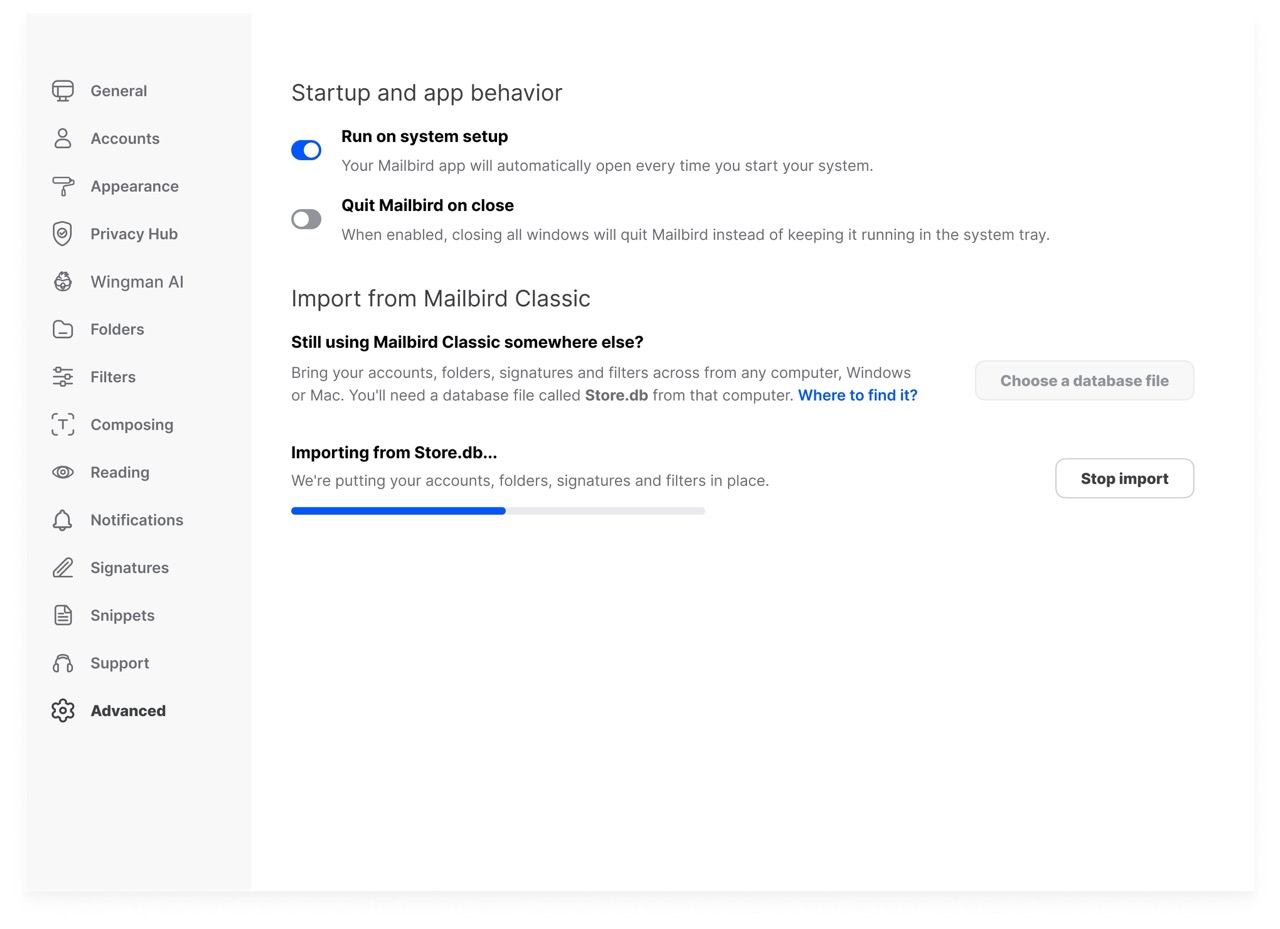
Your mail imports in the background, so you can keep using Mailbird Next while the import runs. Messages appear as they come across, and each account starts syncing new mail as soon as its own import finishes.
⚠️ What Does Not Carry Over Yet
A few things are not part of the import today:
- Provider-synced contacts — contacts from Google, Microsoft, and similar providers are not copied because they sync directly from your account once it is connected. Only contacts stored locally in Classic are imported.
- Calendars — calendars are not imported. For Google and Microsoft accounts, your calendar syncs directly from the provider once the account is connected. Local calendar data is not carried over.
- Some individual settings — most settings come across, but a few granular options do not yet, such as the Undo send period. You can set these again in Mailbird Next.
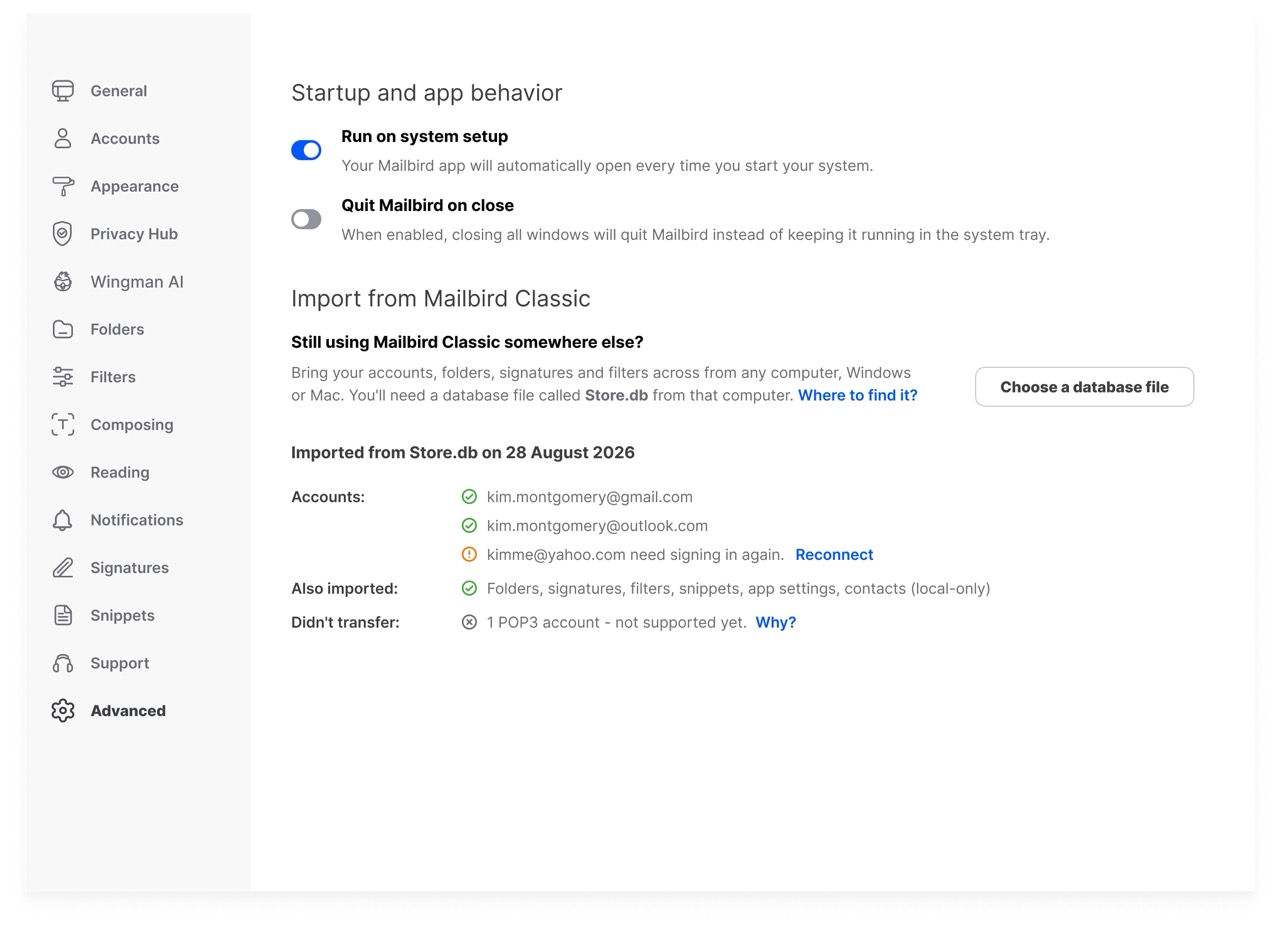
- POP3 accounts — POP3 accounts are not supported for import yet. IMAP accounts import normally.
🚀 Importing During First-Time Setup
When you open Mailbird Next for the first time and it finds Mailbird Classic on your computer, the Accounts step shows everything it found.
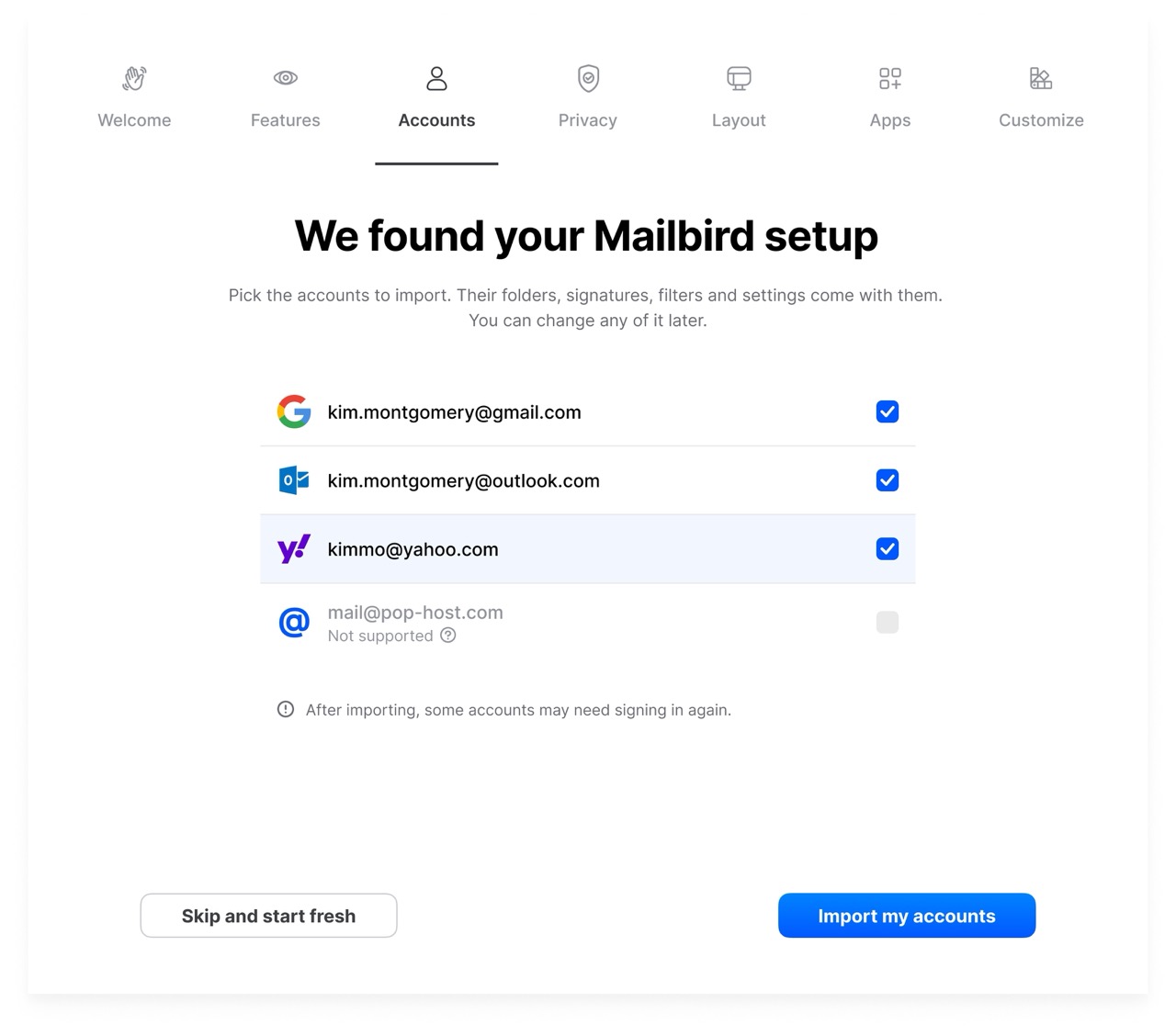
- Pick the accounts to import. Each account is listed with its provider. Tick the accounts you want to import. Their folders, signatures, filters, and settings come with them.
- Click Import my accounts. If you prefer to start fresh, choose Skip and start fresh. You can still import later from Settings.
- Mailbird Next puts everything in place. The Settling you in… step only takes a few seconds.
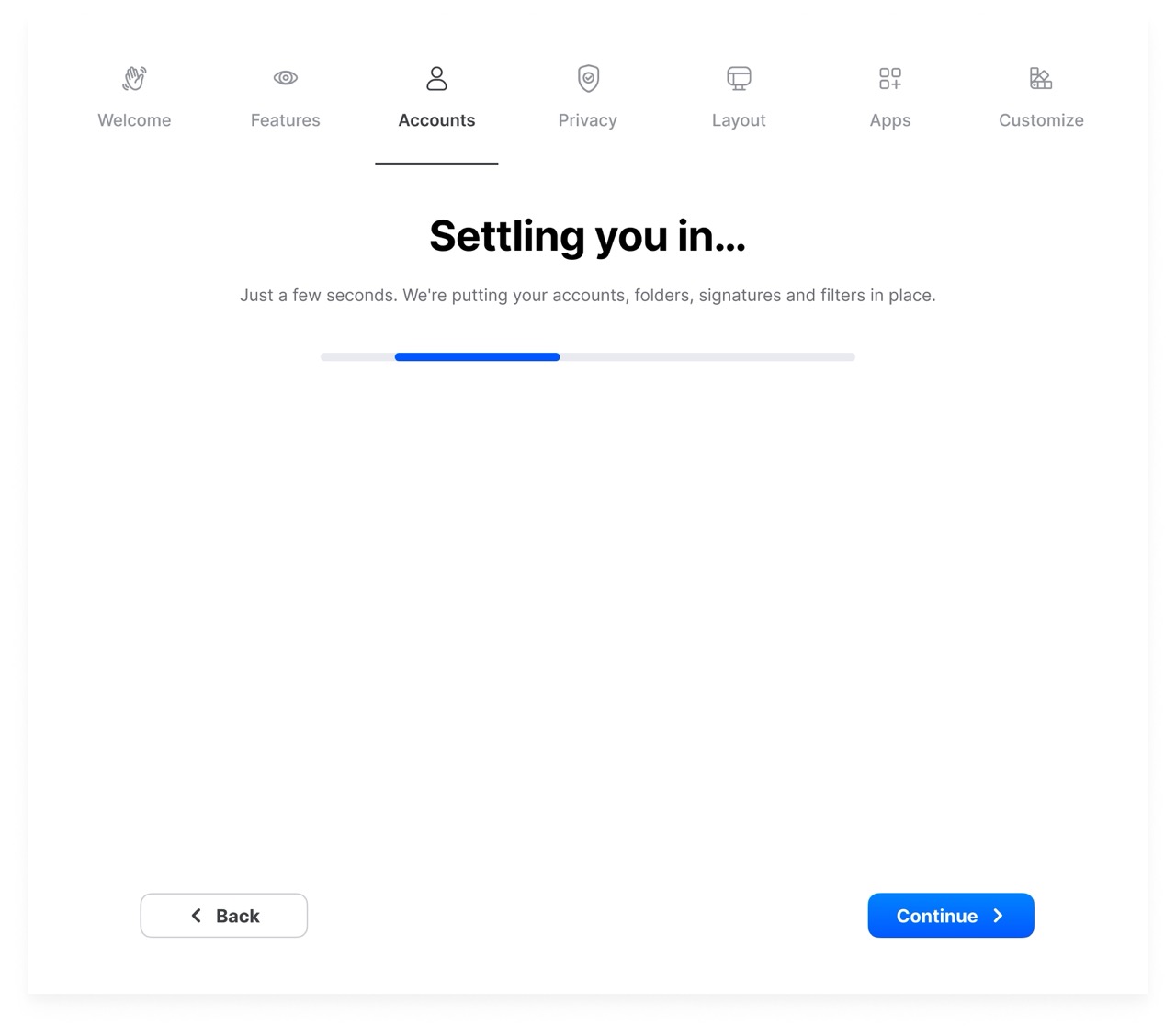
Once this is finished, your accounts, folders, signatures, and filters are ready. Your mail keeps arriving in the background as it comes across.
⚙️ Importing Later From Settings
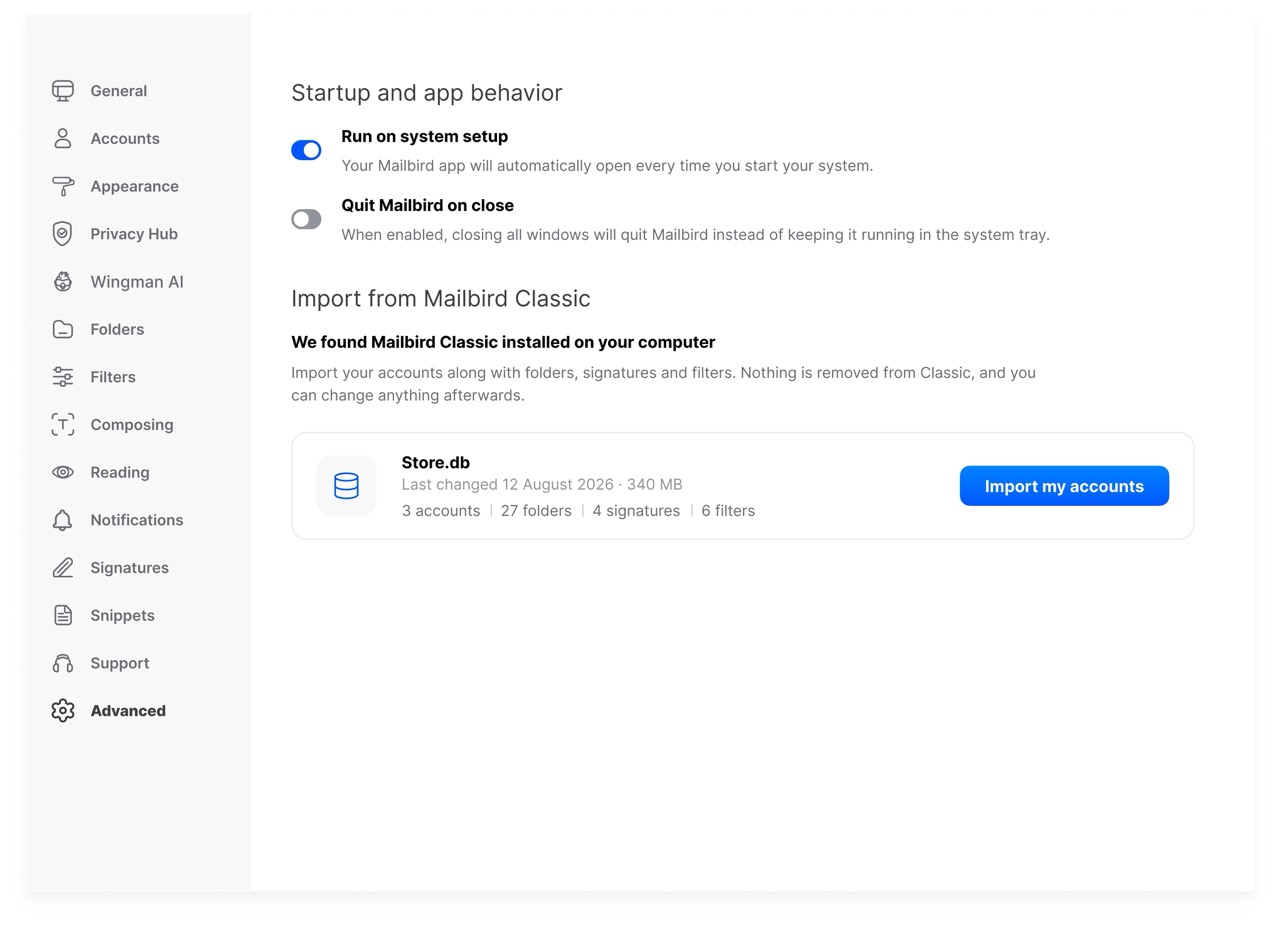
You can import, or import again, at any time from Settings → Advanced → Import from Mailbird Classic.
If Mailbird Classic is on the same computer, Mailbird Next finds it automatically and shows your Store.db file with a quick summary. Click Import my accounts.
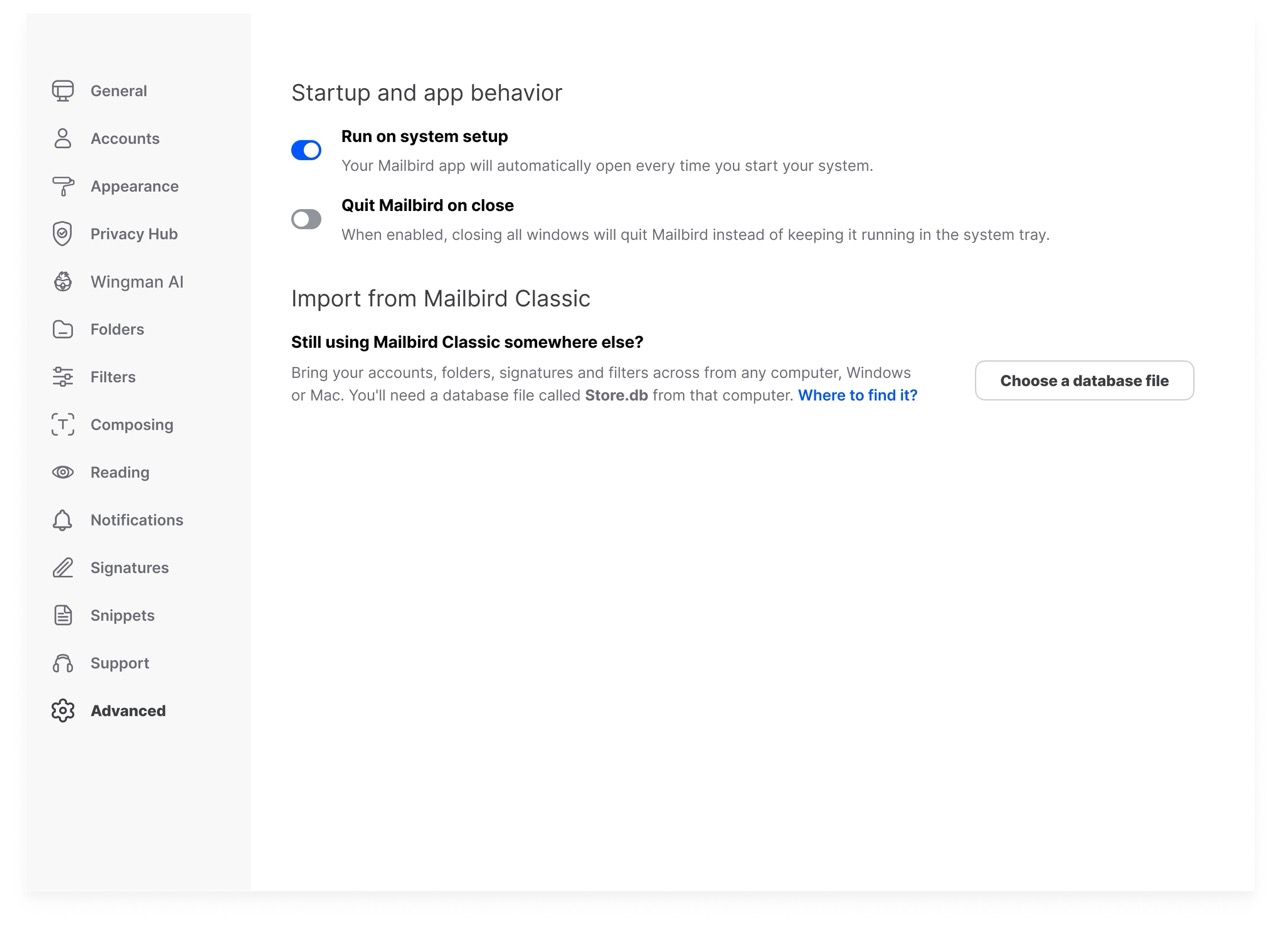
If you are importing from another computer, Mailbird Classic keeps everything in a single file called Store.db. Copy that file to your current computer, click Choose a database file, and select it.
Once a file is selected, review the summary and click Import.
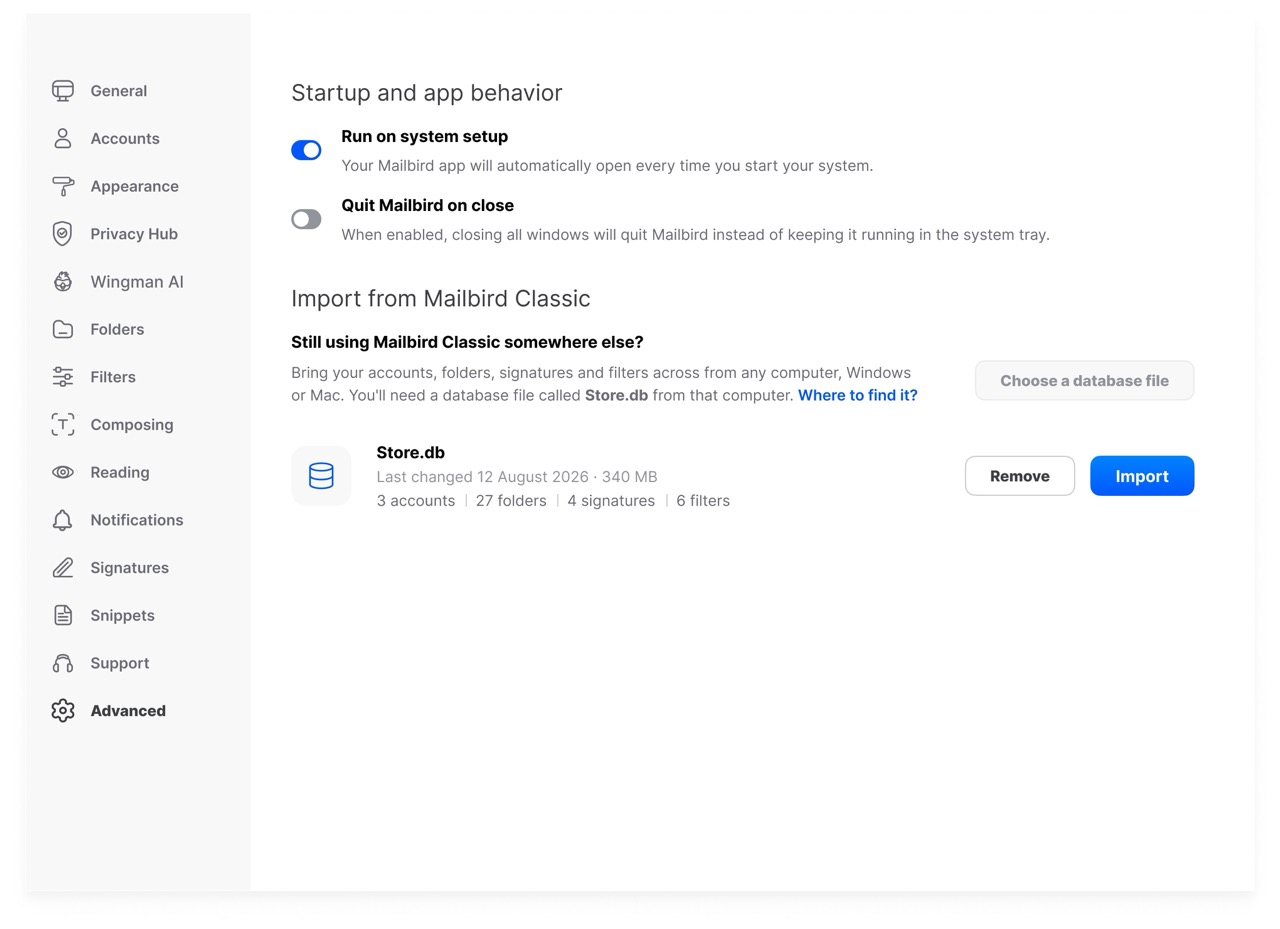
The import runs with a progress bar, and you can keep working while it finishes.
When the import is complete, you will see a summary of exactly what came across, including any account that needs a quick reconnect and anything that could not be transferred.
🔁 Re-Running The Import Is Safe
- Already-imported accounts will not be duplicated.
- Accounts you added manually are left untouched.
- If you imported only some accounts the first time, you can import the rest later. Mailbird Next only brings across what is missing.
💡 Good To Know
- Close Mailbird Classic first. If Classic is still running, Mailbird Next asks you to close it before importing.
- Some accounts may need signing in again. For certain providers, such as Yahoo, you may be asked to reconnect after importing. Your mail still imports; only sending and syncing wait until you sign in.
- If the import is interrupted, for example if you close the app or restart your computer, it picks up where it left off the next time you open Mailbird Next, with no duplicated mail.
- Your data stays private. Passwords, sign-in tokens, and your license key are never written to logs or diagnostics.
- Nothing changes in Classic. The import only reads from Classic. Your Classic installation and data are left exactly as they were.
🤝 Need More Help?
If you have trouble importing from Mailbird Classic to Mailbird Next, please contact our Customer Happiness Team. We will be happy to help.